Create your Meta App, Pixel & Access Token
The part everyone gets stuck on. By the end you’ll have a Pixel ID and a never-expiring Conversions API token — every screen below, with screenshots.
The path from Facebook account to a working token
Every screen is below, but here’s the whole journey at a glance. Get stuck on one box — usually the app-to-Business-Manager link — and the “Generate token” button stays grayed out.
Why a System User token — not a personal one
You could paste a short-lived user token, but it dies the moment your password changes or the session expires — and your server-side events silently stop. A System User token is built for exactly this job.
| Property | Personal user token | System User token |
|---|---|---|
| Survives logout & password change | ✗ | ✓ |
| Can be set to never expire | ✗ | ✓ |
| Owned by the Business, not a person | ✗ | ✓ |
| Scoped to ads_management & business_management | — | ✓ |
| Meant for server-side Conversions API | ✗ | ✓ |
Step One
Create Meta Pixel & Access Token
1.A
Create the Pixel — Events Manager
- Go to Meta Events Manager
- Click "Connect Data Sources" → "Web" → "Meta Pixel"
- Enter pixel name:
Your Model - OnlyFans - Copy your Pixel ID (example:
1881842942413828) — keep it for Step 3
1.B
Create the App & link it to your BM — developers.facebook.com
- Go to developers.facebook.com → "Get Started" → register as a developer (verify email/phone, accept terms). Your account is now in developer mode.
- My Apps → "Create App" → pick the first two options offered (wording changes often; the default business path is fine). The name doesn't matter — go to the end.
- Copy your App ID (top of the app dashboard).
- Link it to your BM: Business Settings → Accounts → Apps → "Add" → "Connect an app ID" → paste the App ID.
The app is what the System User token will be issued against.
1.C
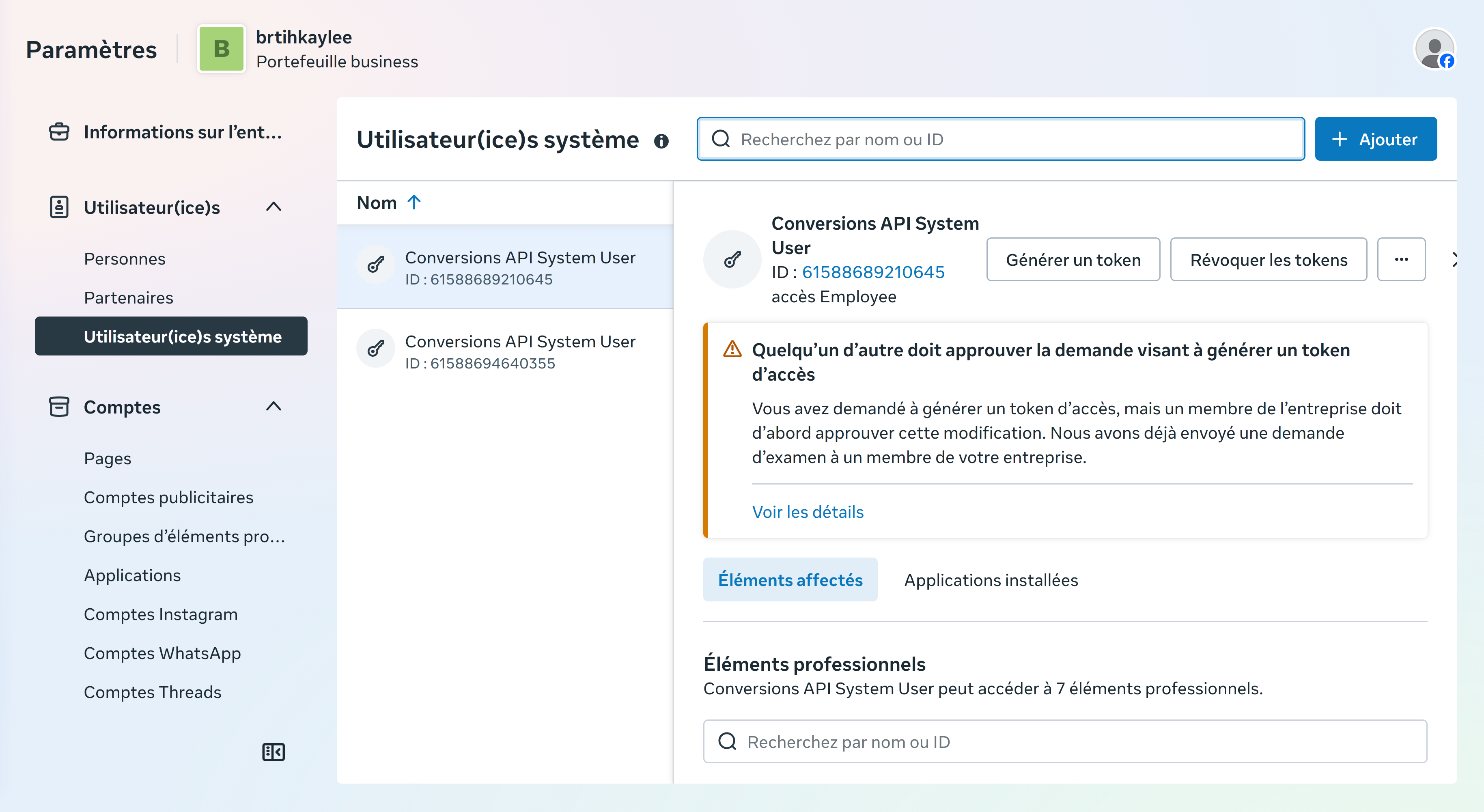
Create a System User
- Go to Business Settings → Users → System Users
- Click "Add" → name it
Conversions API System User→ role: Employee
1.D
Assign assets to the System User
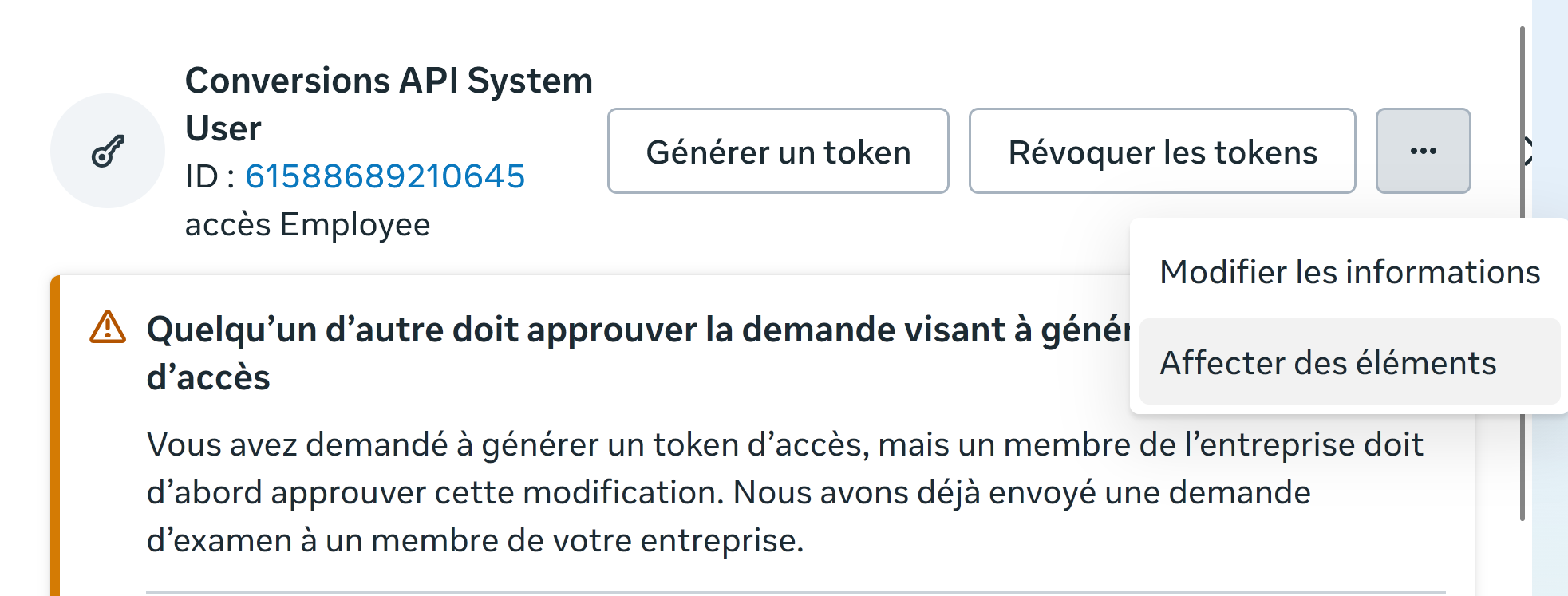
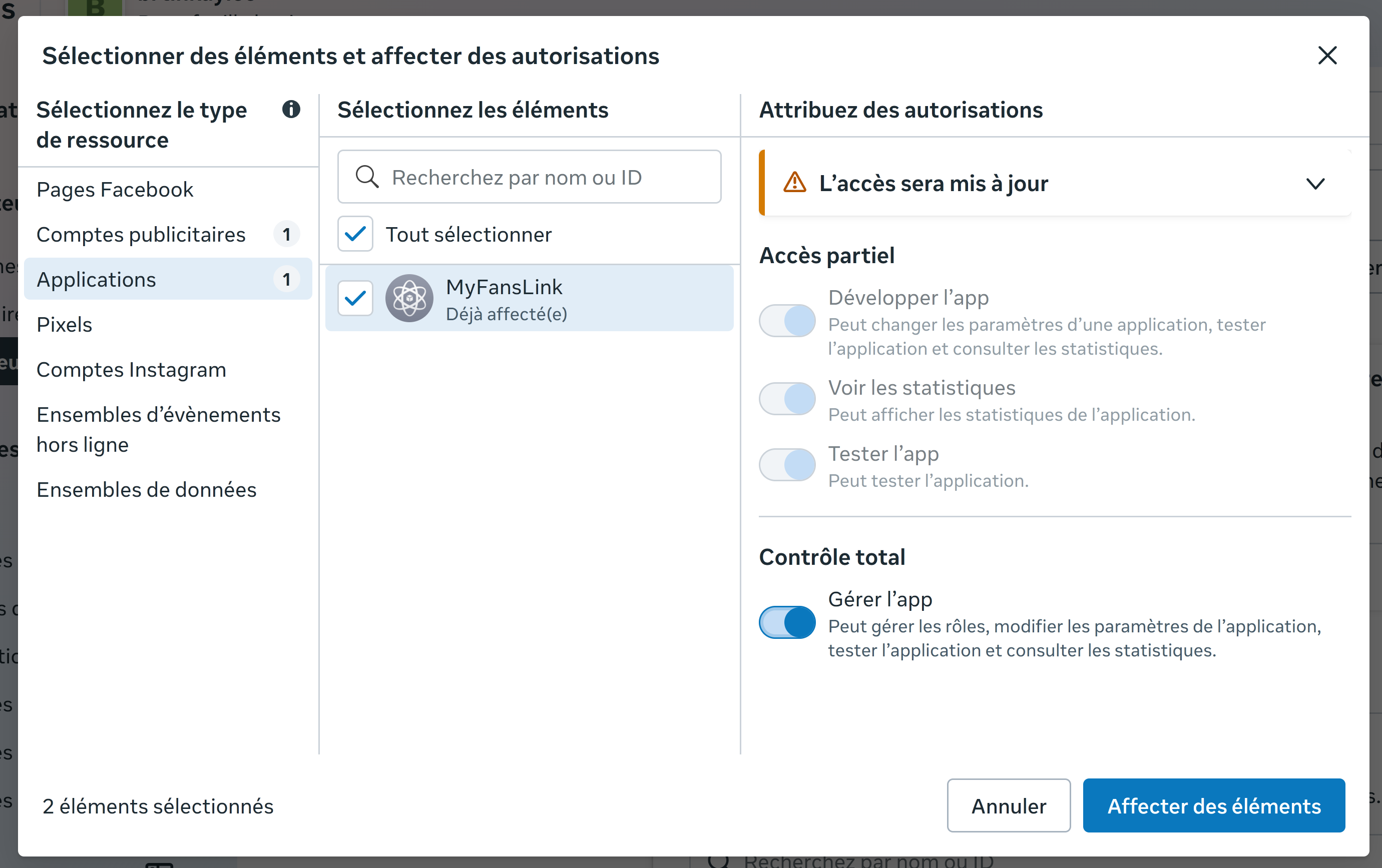
Open the System User and click the ··· menu → "Add Assets" (FR: Affecter des éléments).
Assign the following three asset types:
Pick the ad account you'll run ads from → Partial access → "Manage Campaigns" (FR: Gérer les campagnes).
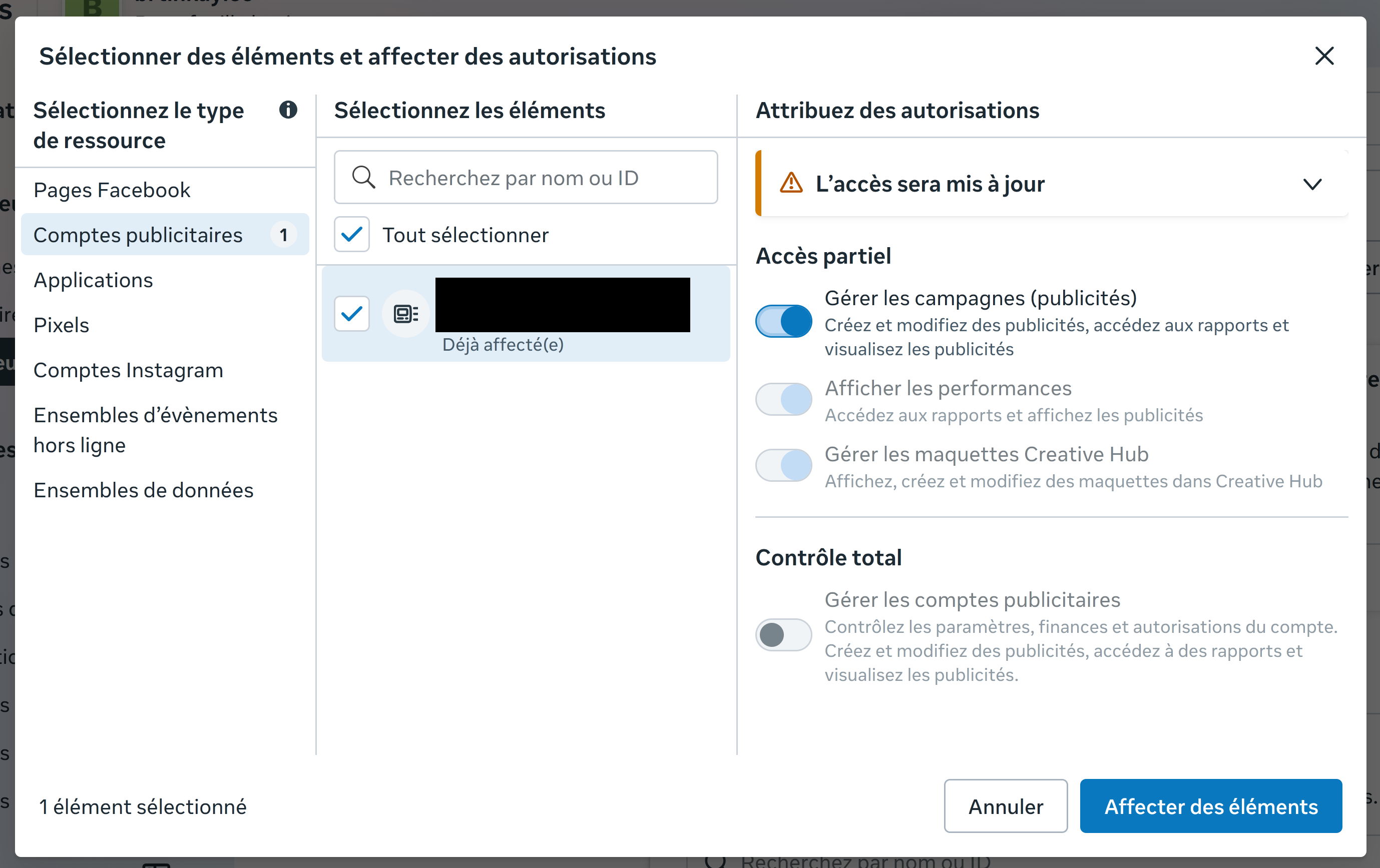
Pick the app from 1.B → Full control → "Manage app" (FR: Gérer l'app).
Pick the Pixel from 1.A → Full control → "Manage the event dataset" (FR: Gérer l'ensemble de données d'évènements).
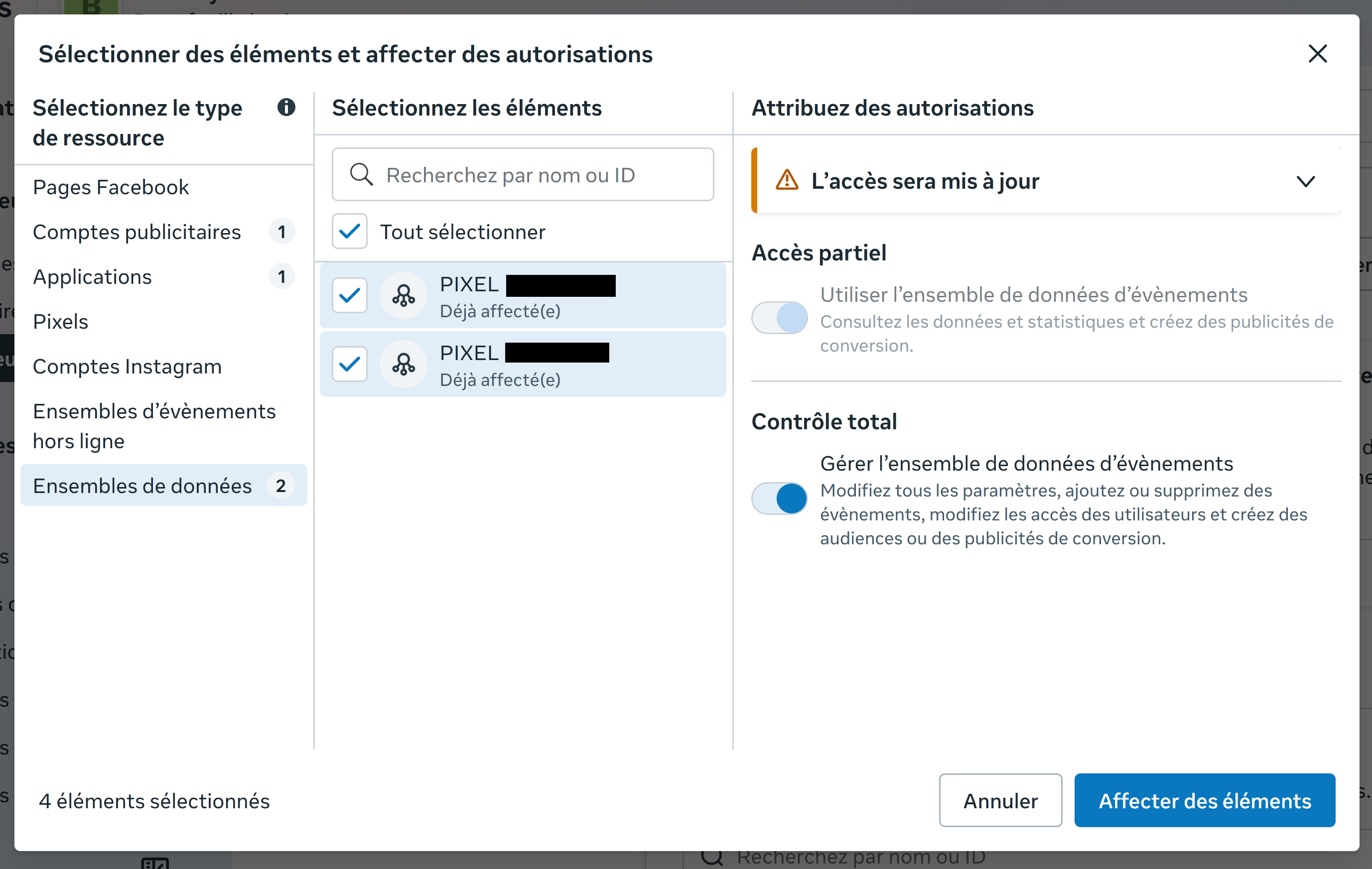
Note: Meta merged Pixels into "Datasets" — same thing, new name.
1.E
Generate the Access Token
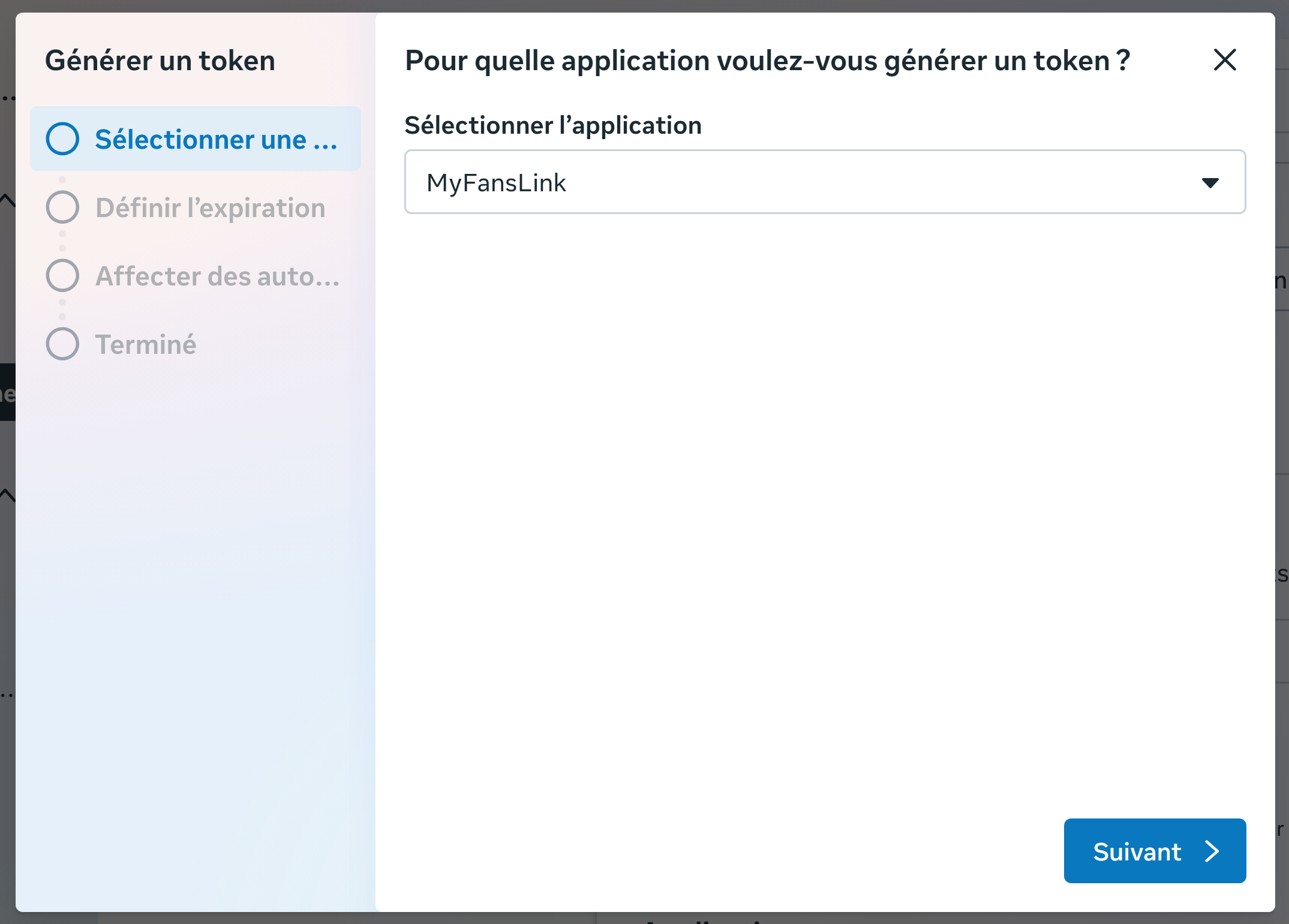
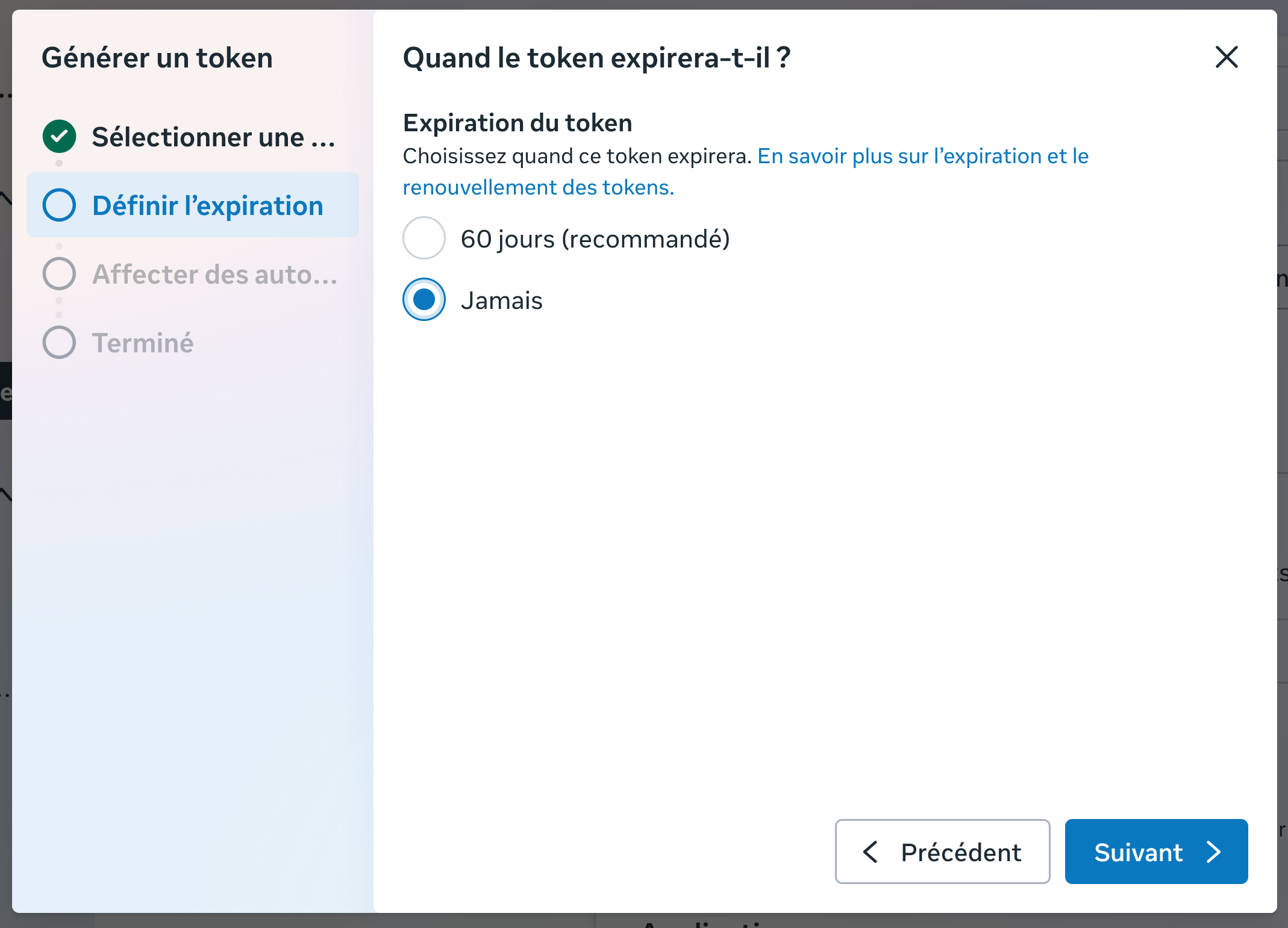
Back on the System User page, click "Generate New Token" (FR: Générer un token) and walk through the 3 steps:
Pick the app from 1.B (e.g. OnlyFans Pixel).
Choose "Never" (FR: Jamais) — recommended for server-to-server CAPI.
ads_managementads_readbusiness_management
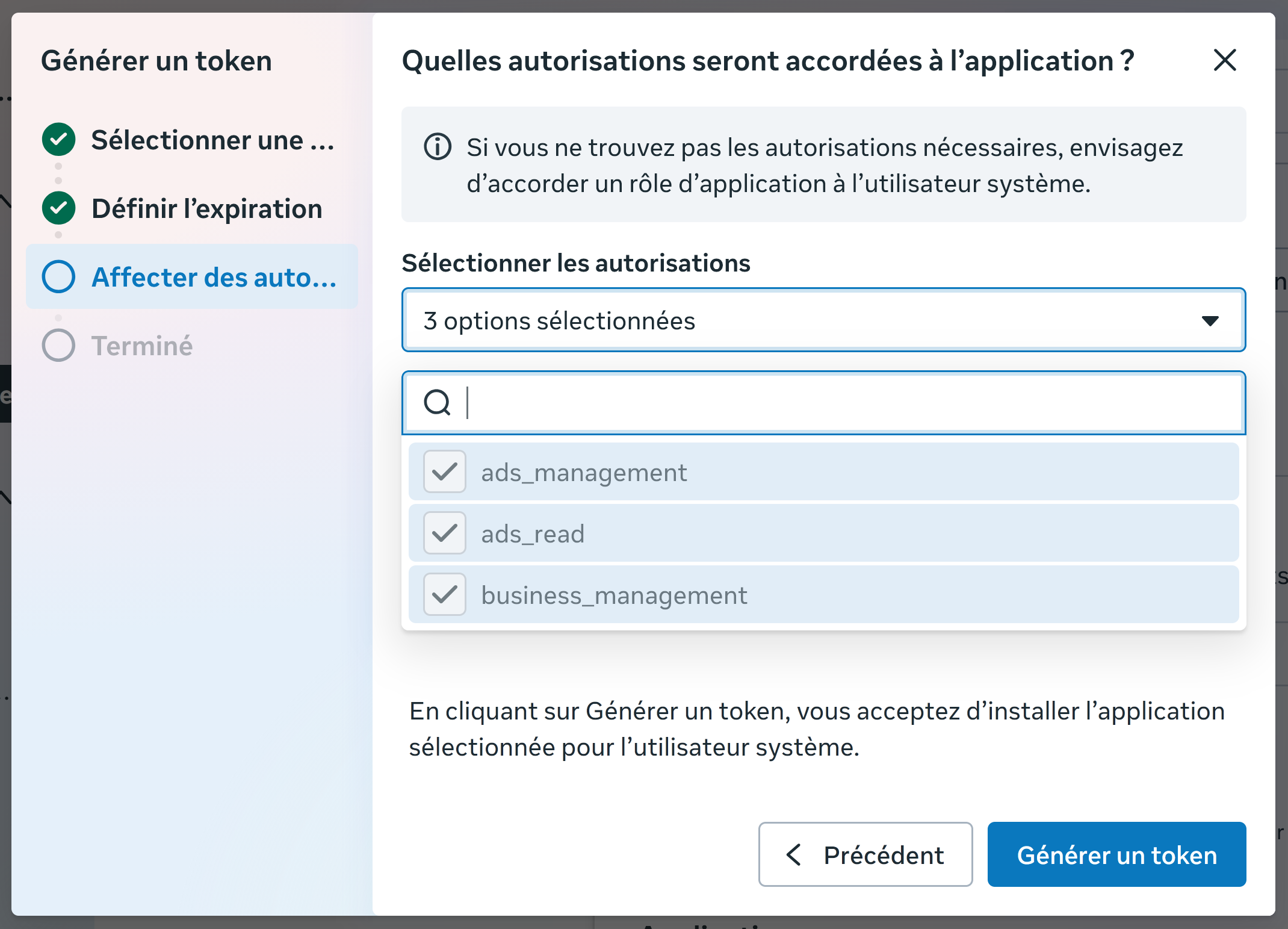
EAA...) — keep it for Step 3 of this guide. The token is shown only once. Store it safely.